If you have lots of lights in your scene but just want to see the effect of one light, you can use the solo button to hide all other lights.
Multiple lights can be set to solo, and only the solo lights will be shown.
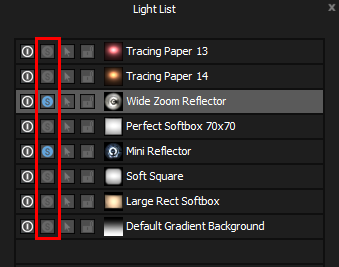
Solo Switch
When no solo buttons are used, the state of the lights (either on or off) is taken only from the on/off switches.
If any light has been soloed, then the on/off column is ignored and the state of the lights is taken from just from the solo switches.
This is handy because you can use the solo feature to see lights that are turned off in the lighting design without changing their on/off state.
Isolate Selected Light with keyboard shortcut - New in 9 Drop 4
HDR Light Studio has always let you solo individual lights from the Light List, but now that control is available as a keyboard shortcut too. Press 'S' at any time to solo the currently selected lights, temporarily hiding all others - and press 'S' again to restore them. This is especially useful when you're in the middle of moving or adjusting a light and want to quickly isolate it to see its true effect on the scene. No need to move the mouse back to the Light List and click - just tap the 'S' key to isolate that light and keep working.